> For the complete documentation index, see [llms.txt](https://docs.syfu.io/llms.txt). Markdown versions of documentation pages are available by appending `.md` to page URLs; this page is available as [Markdown](https://docs.syfu.io/quick-start/elementnoi.md).
# 1.6 For Users Buying on Element
This page explains how to purchase and transfer NFTs using Element (NFT marketplace).
***
#### How to Purchase NFTs
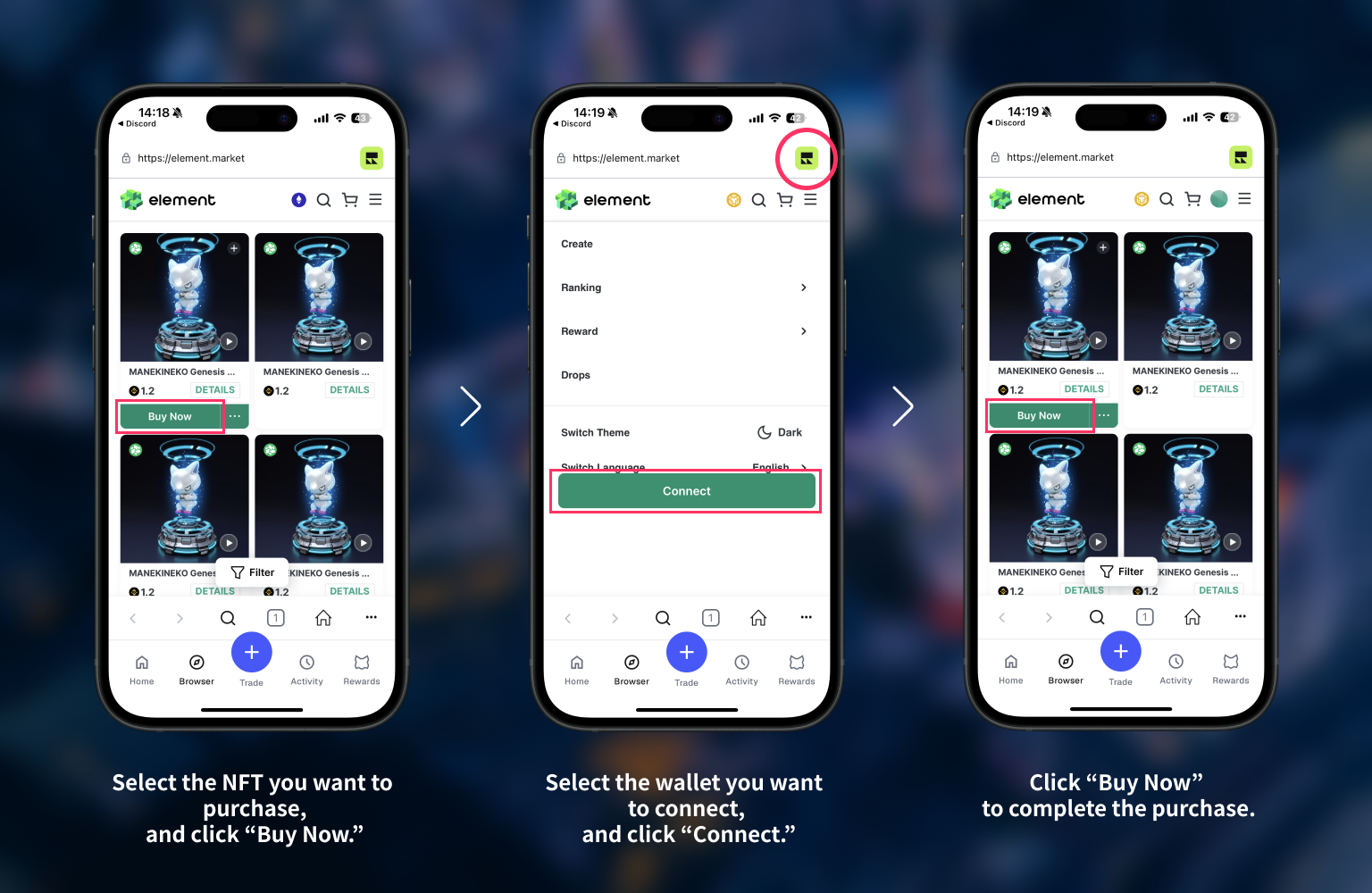
① In your **browser**, select the NFT you want to buy and click the **"Buy Now"** button.
② The **Connect Wallet** screen will appear. Select the wallet app you want to connect.
③ You will be redirected to the **wallet app's browser**. From the icon in the top right, select the wallet you want to use (e.g., MetaMask browser).
④ Click the **≡ (menu icon)** in the top right of Element and select **"Connect"**.
⑤ Once the wallet is connected, select the NFT again, click **"Buy Now"**, and complete your purchase.
> 💡 **Tips**
>
> * After connecting your wallet, make sure it is set to the correct chain (**BNB Chain**).
> * After purchase, the NFT will be automatically sent to your connected wallet.
> 💡 BNB is required for purchases (gas fees & payment). Be sure to send BNB to your wallet in advance.
>
> 🔗 **Official SyFu Collections on Element**
>
> * [MANEKINEKO Official Collection (Element)](https://element.market/collections/manekinekonft)
> * [MANEKINEKO Genesis Collection (Element)](https://element.market/collections/syfu-manekineko-genesis)
***
#### How to Transfer NFTs
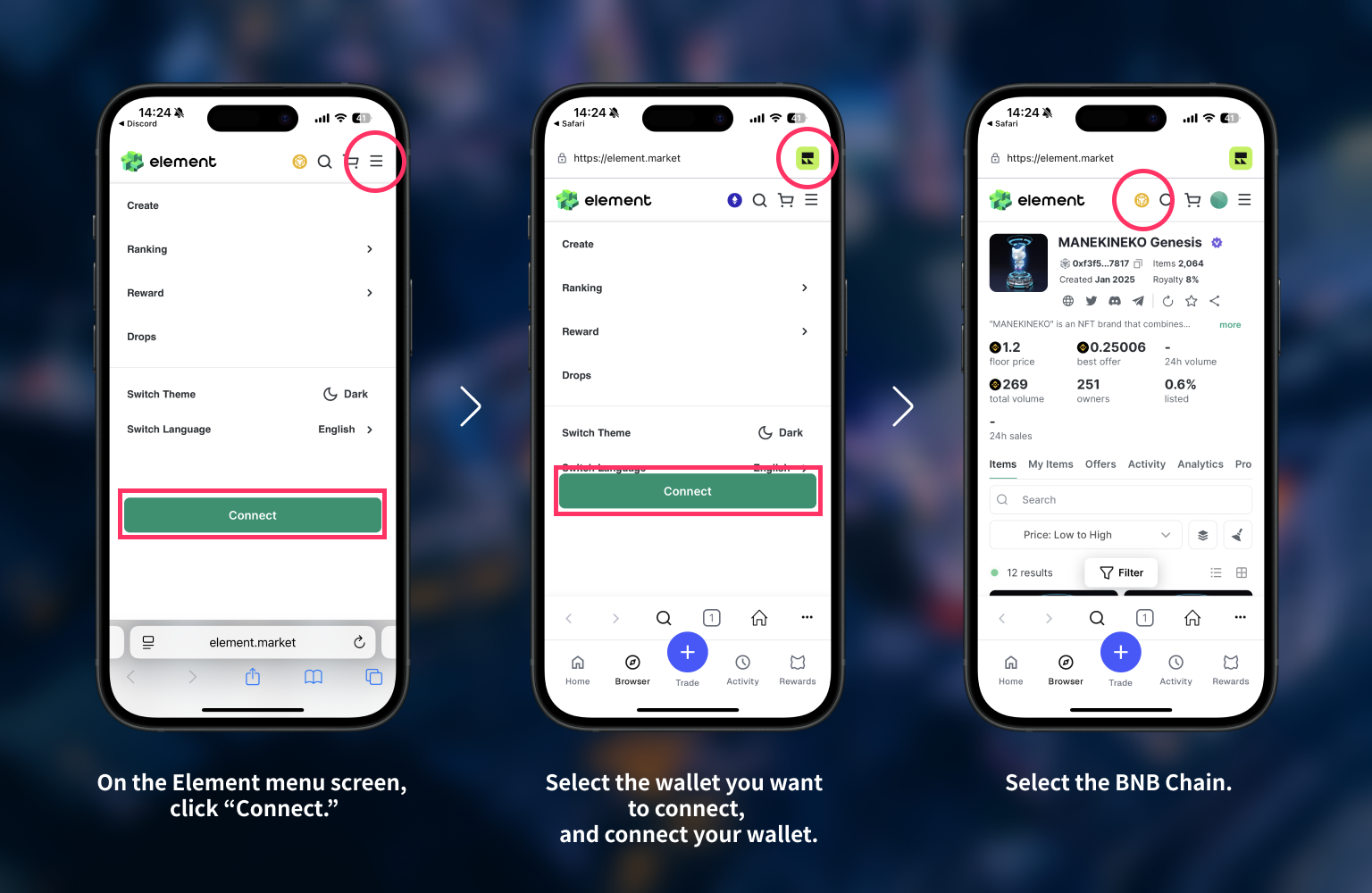
① Open [**Element**](https://element.market/) in your **browser**.
② Click the **≡ (menu icon)** in the top right and select **"Connect"**.
③ The **Connect Wallet** screen will appear. Select the wallet app you want to connect.
④ You will be redirected to the **wallet app's browser**. From the top right icon, select the wallet you want to use (e.g., **MetaMask browser**).
⑤ Click the **≡ (menu icon)** in the top right of Element again and press **"Connect"** to connect your wallet.
⑥ Select **"BNB Chain"** as the chain.
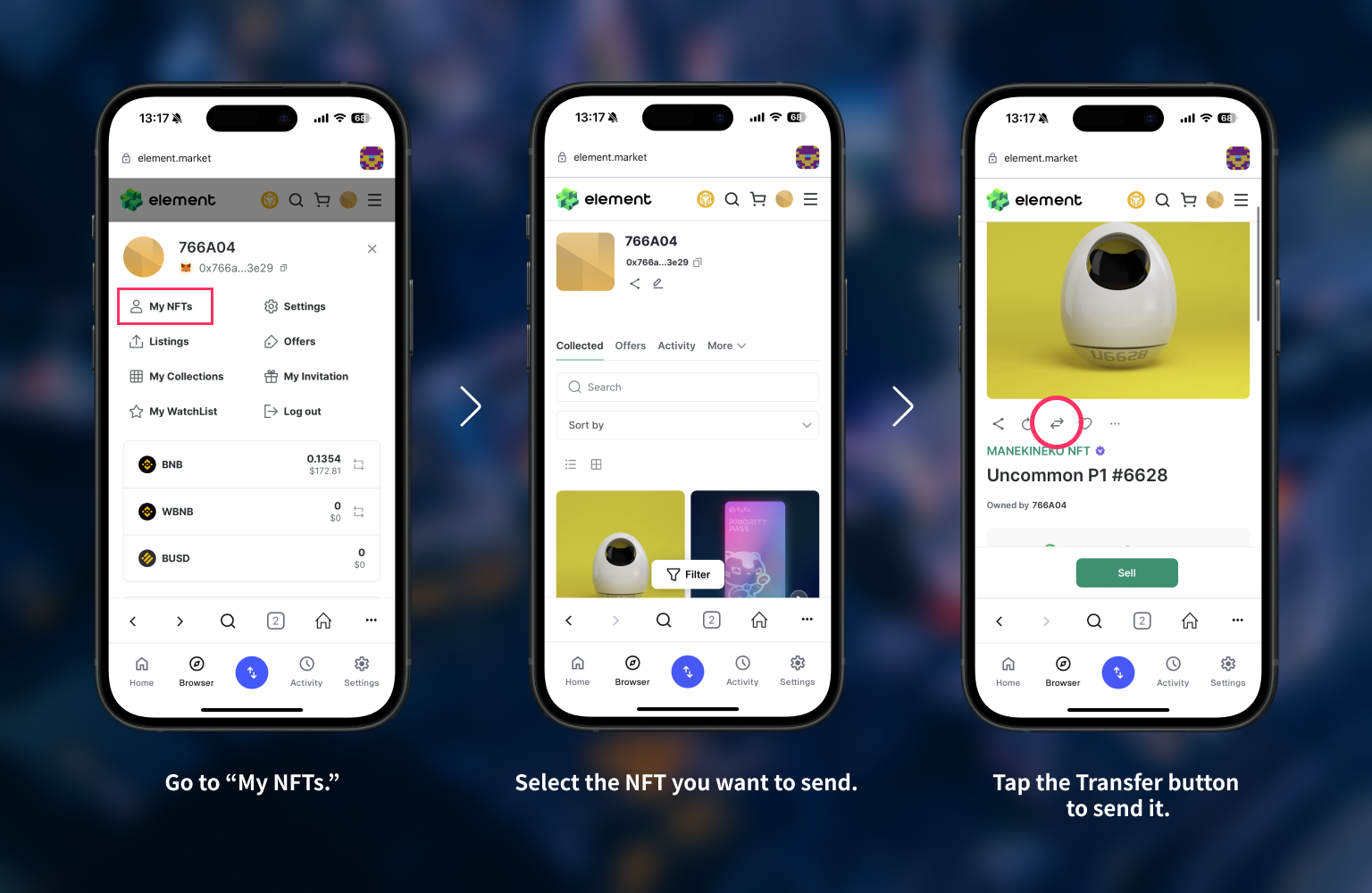
⑦ Click the icon in the top right of Element and select **"My NFTs"**.
⑧ Select the NFT you want to transfer, and click the **"Transfer"** button on the NFT detail page.
⑨ Enter the recipient wallet address and click **"Transfer"** to complete the transaction.
***
**⚠️ Notes**
* BNB is required for transfers. Please check your balance beforehand.
* If you enter the wrong wallet address, the NFT will be lost. Always verify the address before sending.
* After sending, it may take some time for the NFT to appear in your wallet or app.
> ⚠️ **Regarding issues or errors caused by Element or third-party services** SyFu is **not responsible for any malfunctions, sending errors, loss, duplicate transfers, or damages** that occur on external services such as Element or MetaMask.\\
>
> NFT purchases and transfers are conducted **at your own risk**. For Element usage or transaction specifications, please refer to **Element’s official support**. 👉
***
#### 🔗 Related Links
* [Element Marketplace Official Site](https://element.market/)
* [MANEKINEKO NFT Official Collection](https://element.market/collections/manekinekonft)
* [1.8 Send from External Wallet to SyFu Wallet](/quick-start/syfu-nft-transfer.md)